Modify Your EC2 Instance Volume Size (both windows and linux)
Published
•2 min read
Amazon EBS volumes
An Amazon EBS volume is a durable, block-level storage device that you can attach to your instances. After you attach a volume to an instance, you can use it as you would use a physical hard drive. EBS volumes are flexible.
- You can increse or decrese the size of a volume.also you can attach and deatch the volume. so that you can simply add the many volumes to once instance.
Here i am going to explain how to Increse the volume size in WIndows and Linux ec2 instances.
1.Resize your EBS volume size for the Linux EC2 instance
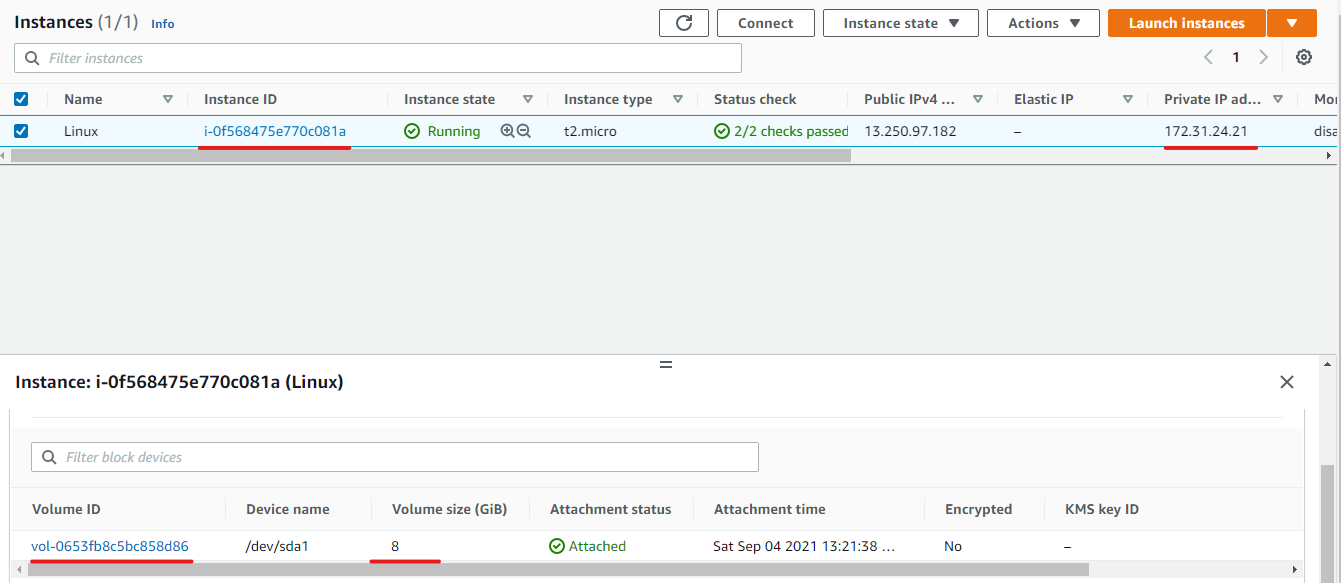
- Below images show my Linux instance and its volume size.it have 8 GB of space.
- I am showing the volume size and available space inside the linux os using df -h command
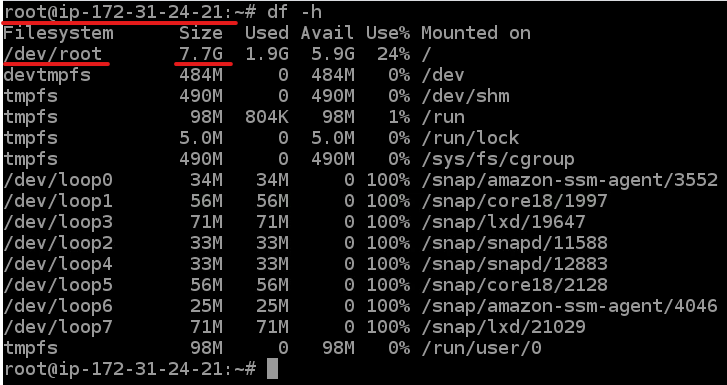
- This volume have 8GB of total spcae ,used space is 1 Db then available space is 6GB
- Select the ec2 instacne which you want modify the volume size and going to select storage section and choose which volume you are going to modify.
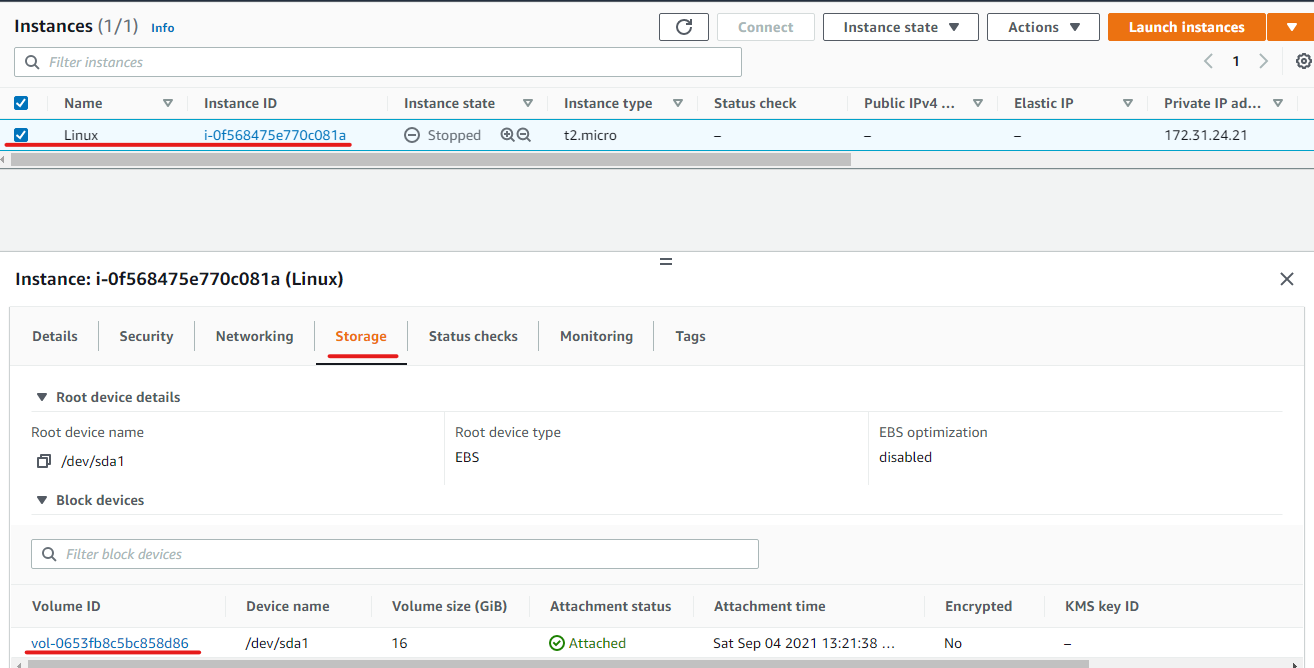
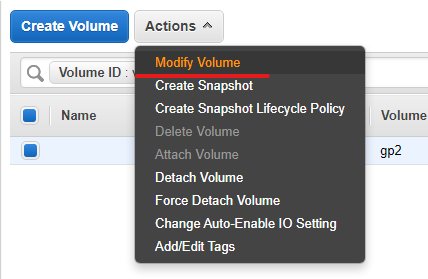
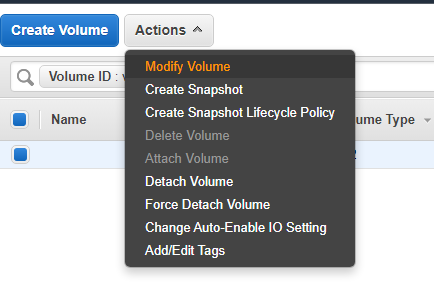
- Select the volume and modify
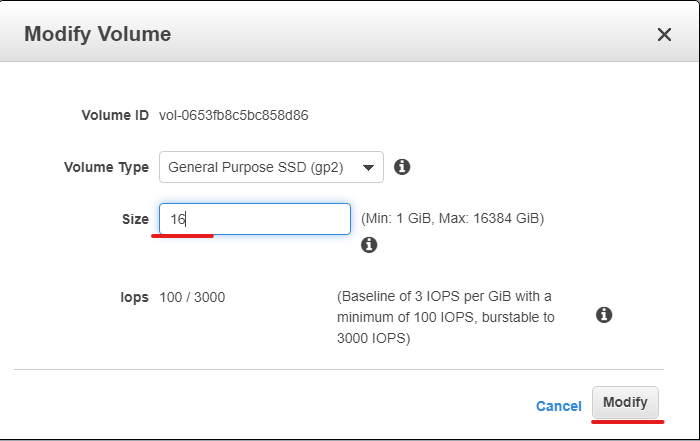
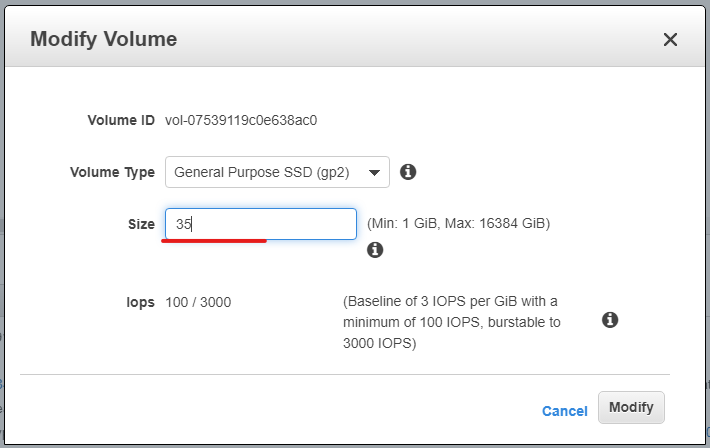
- Provide the new volume size and modify
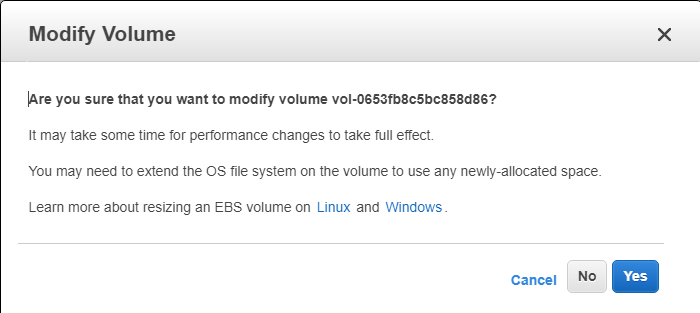
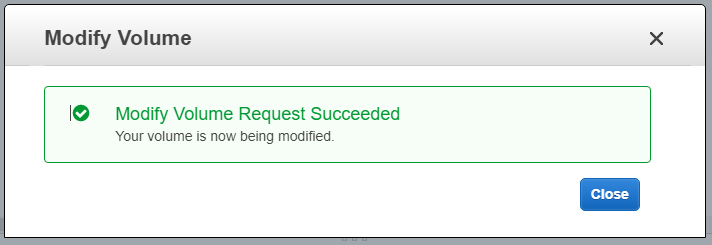
- It will take some time to modify the instance volume size.


- After getting the in-use action getting as green color you modification is done.
- Now we are going to check the volume size inside the Linux OS.
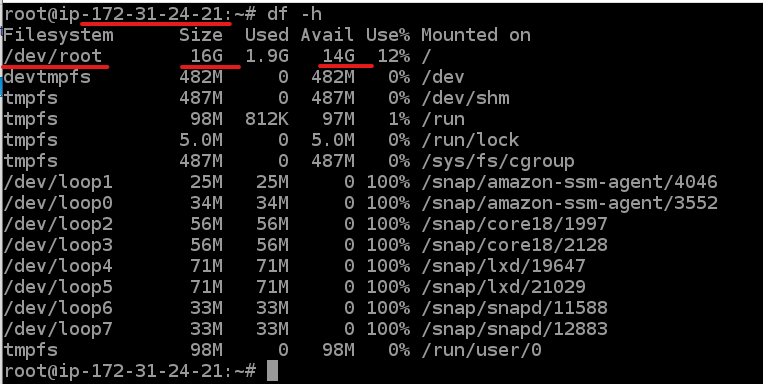
See now the size has been changed.
Total volume size = 16 GB
Used size = 1 GB
Available space = 14 GB
2.Resize your EBS volume size for the Windows EC2 Instance
Do the Same steps which we have done for linux
- This windows instance volume have 30GB of total spcae .
we are going to modify the volume size.just select the volume.
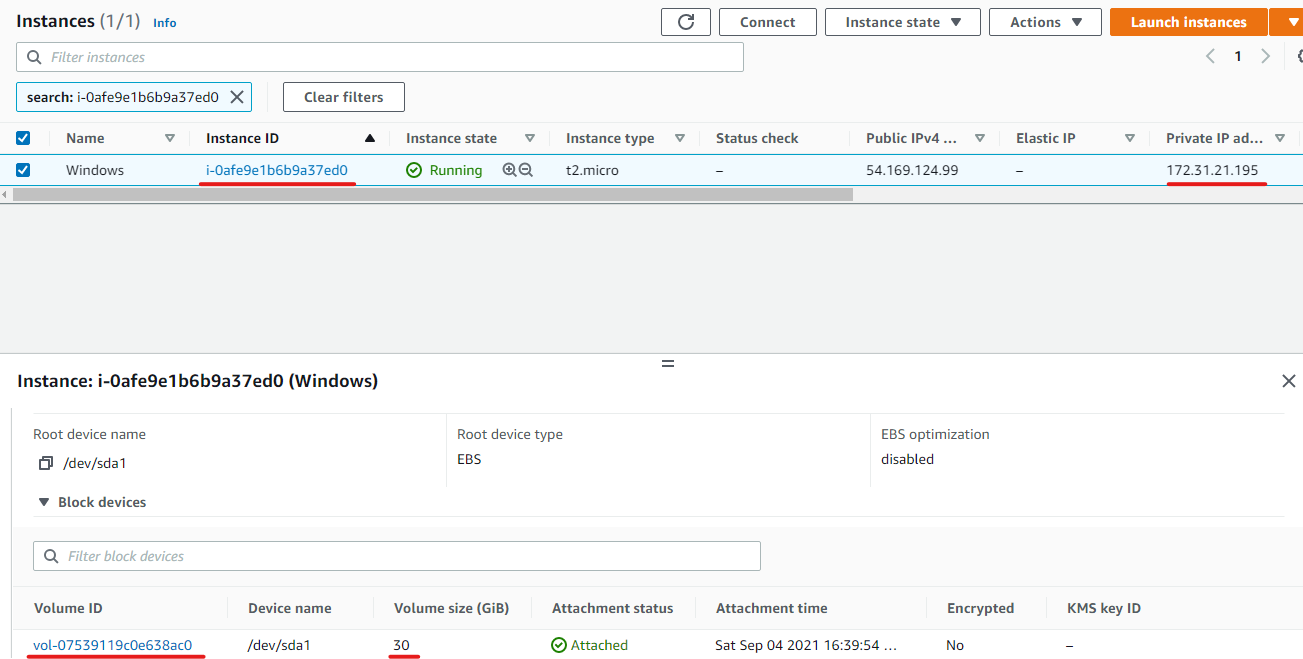
Select the volume and modify
Provide the new volume size and modify
- After getting the in use as green color you modification is done.


After increase the volume size we must want to login to the windows instance via rdp.
- Open diskmanagement console
Run-> diskmgmt.msc
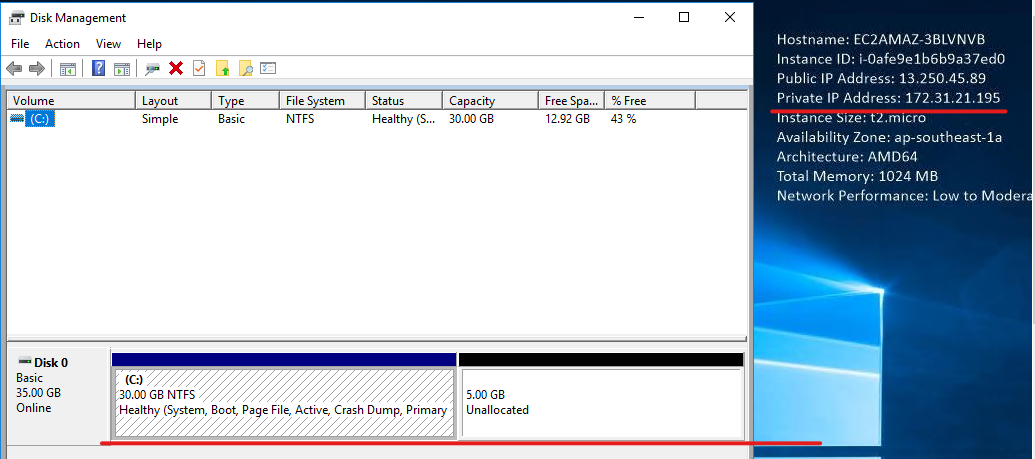
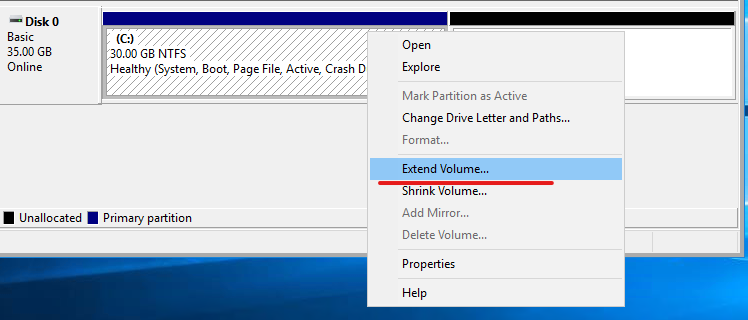
- To extend the disk space in drive right click on the newly allocated space and select extend volume.
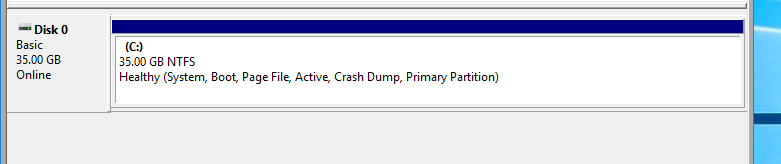
Now our Volume size is increased inside the os.